Create your account and accept the photo responsibilities, then verify your email. Studio opens immediately. Keep the original. Review the result.
01 / UPLOAD & CHOOSE
Choose photos. Start creating.
Choose one photo or a batch. Upload starts immediately in a new project album; rename it later. One photo opens in its editor. Several open as a selected batch. Choose an enhancement, add a room type for staging, then confirm the displayed credit cost with Enhance.
02 / COMPARE & REFINE
Check the details.
Use Original, Edited and Compare above the photo. Adjust result opens a written change request. Change one item lets you name and mark a movable item. Versions & undo restores a recent saved result for free.
Each album includes ten successful adjustments across its photos, then one credit per successful adjustment. Failed or rejected adjustments use neither allowance.
03 / ORGANIZE & EXPORT
Prepare the whole story.
Multiple new uploads are selected automatically. Use Edit several photos to select existing photos. For angles of the same room, choose a finished staging reference under Match this room. Keep that reference out of the edit selection.
Download photo saves your finished photograph. Download all finished photos saves completed album results together. Create a share graphic prepares a labeled comparison or edited image for a feed, square or story.
SEASONAL EXTERIORS
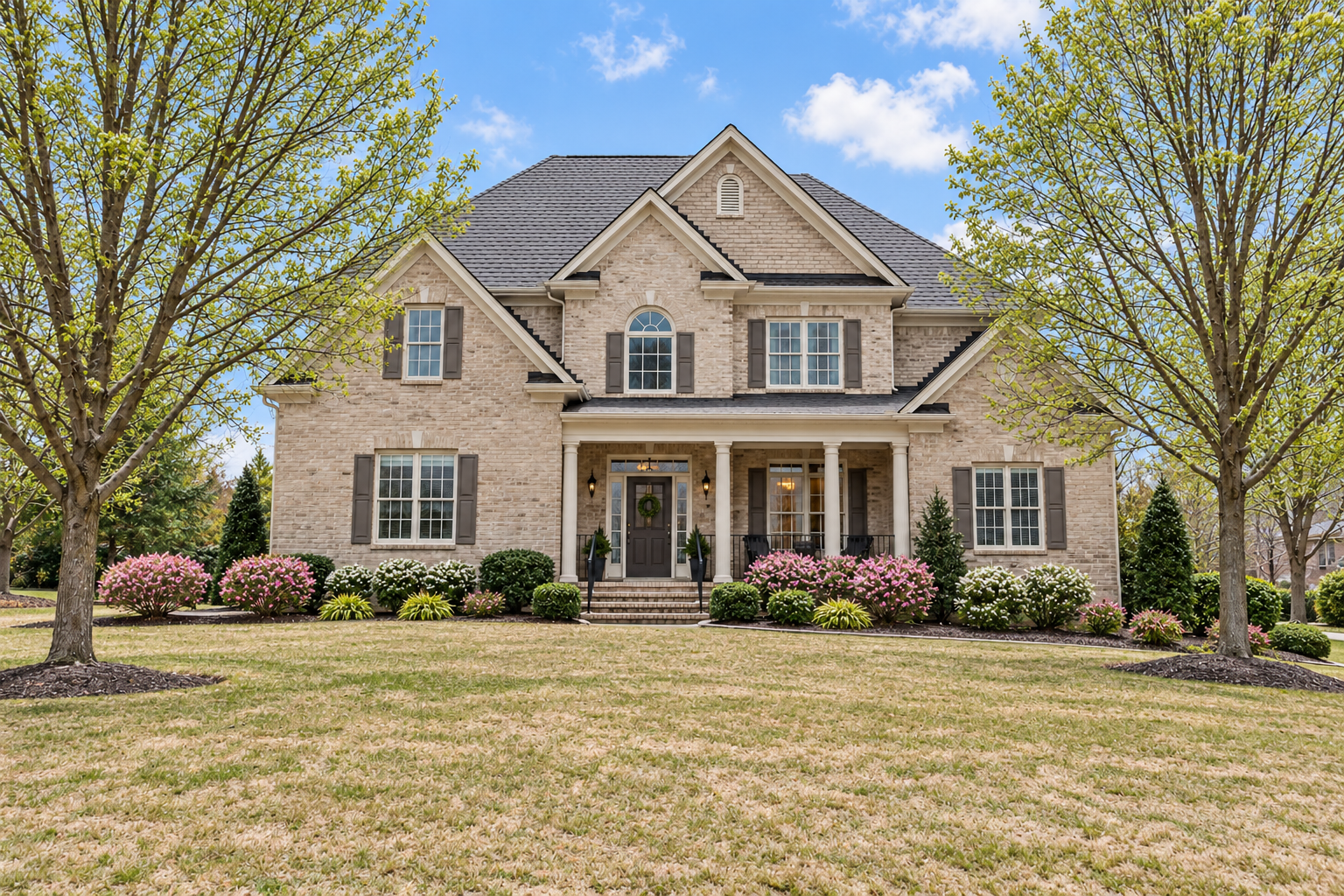
Spring bloom, in one edit.
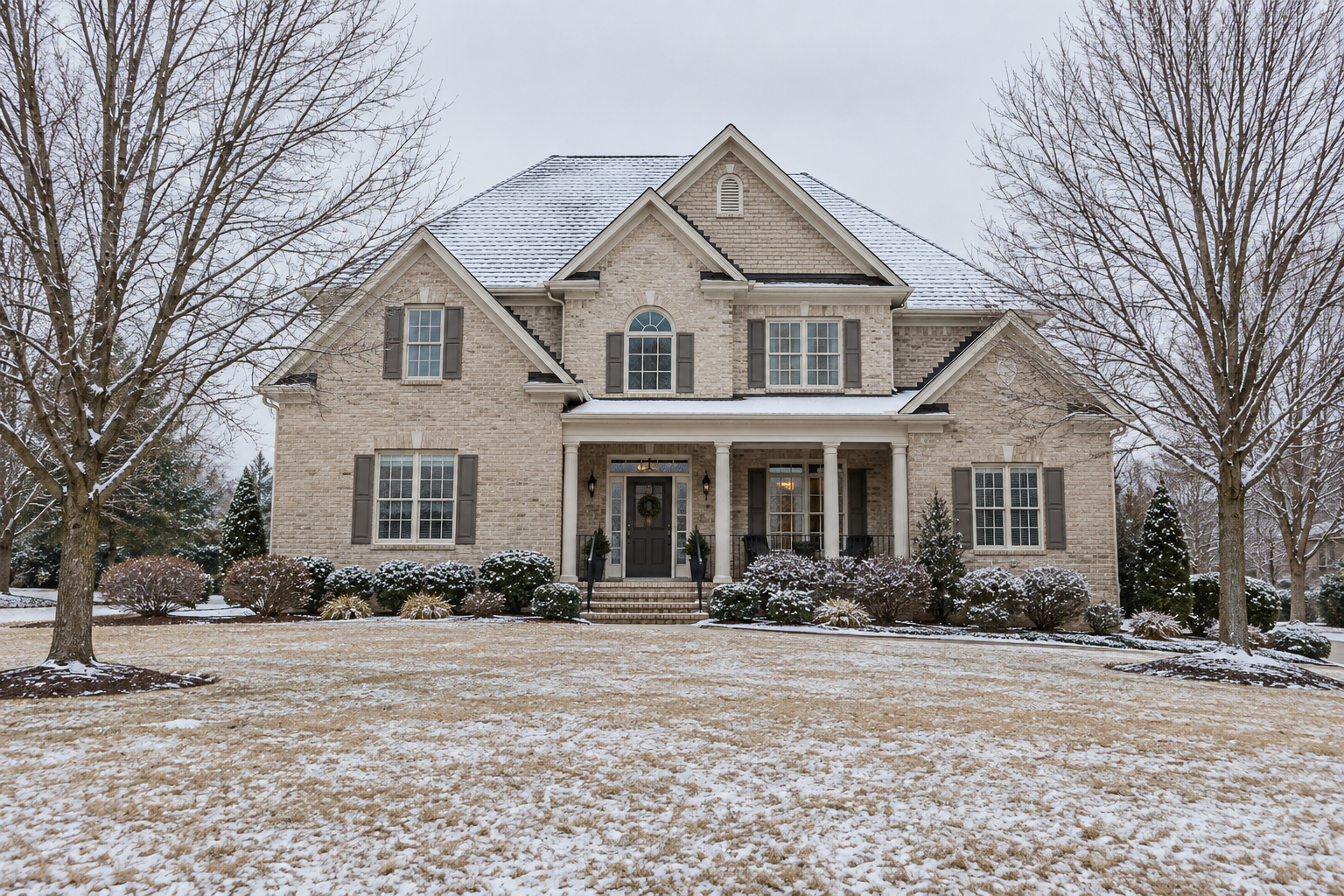
Green trees, blooming shrubs, blue sky and snow removal. Choose one exterior photo or a batch, select Spring bloom and press Enhance after reviewing the credit count.
Compare with the original before downloading. Check address markings and detail previously hidden by snow.
Uploads, edits, downloads and album deletion show their status. Keep the page open while uploading or preparing a download. Queued background edits can finish while you work elsewhere; return to the album to review them.
Help buyers picture life in the home. Our editing instructions and review checks are designed to protect the features they will find when they walk through the door.
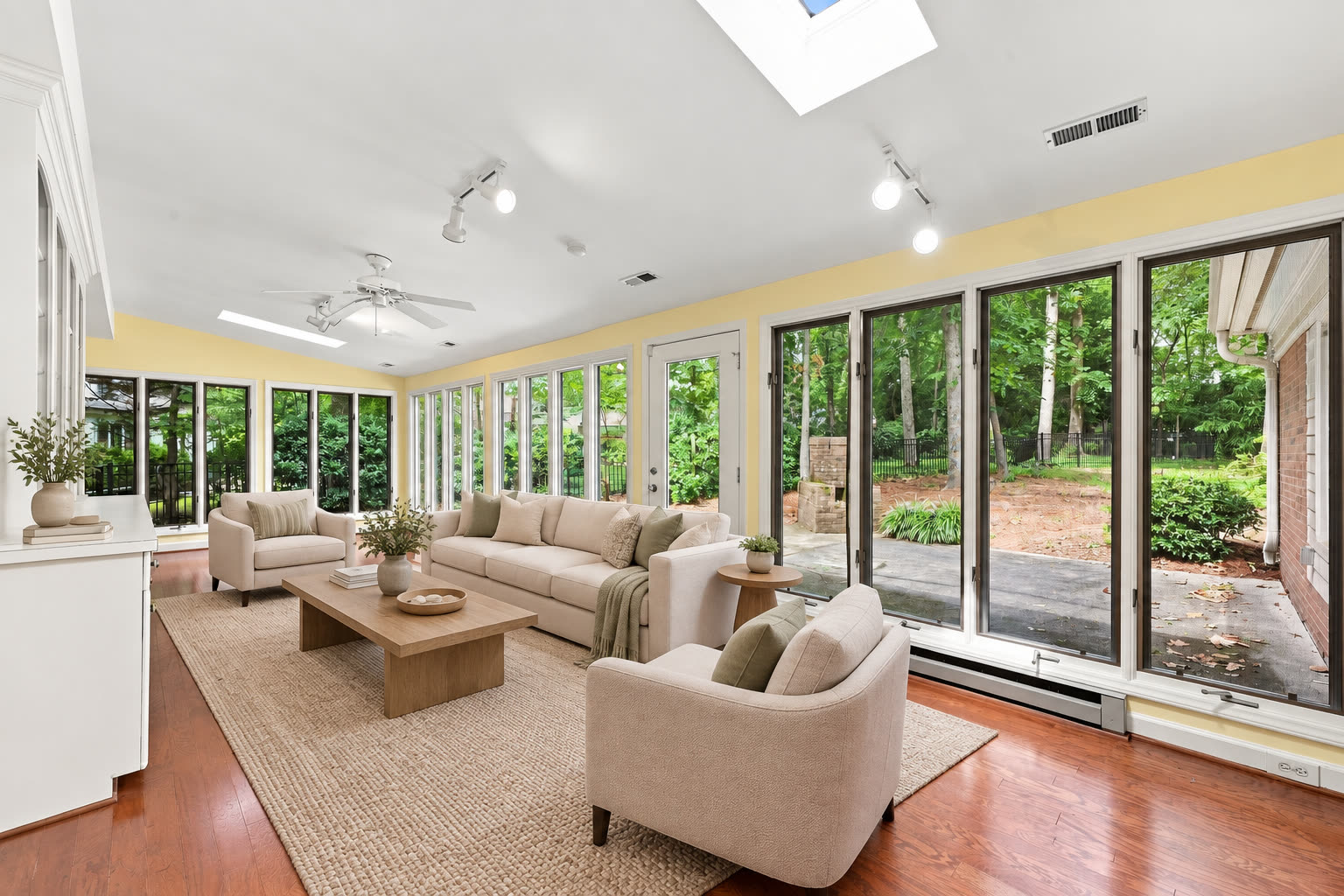
Stage or remove movable furniture and décor. Brighten the photograph, tidy personal belongings, or choose a sky, twilight or Spring bloom seasonal treatment.
THE ACTUAL HOME
Safeguards for permanent features.
Safeguards aim to preserve walls, windows, flooring, built-ins, fixed lighting and plumbing, along with the property’s visible condition.
See what stays in place
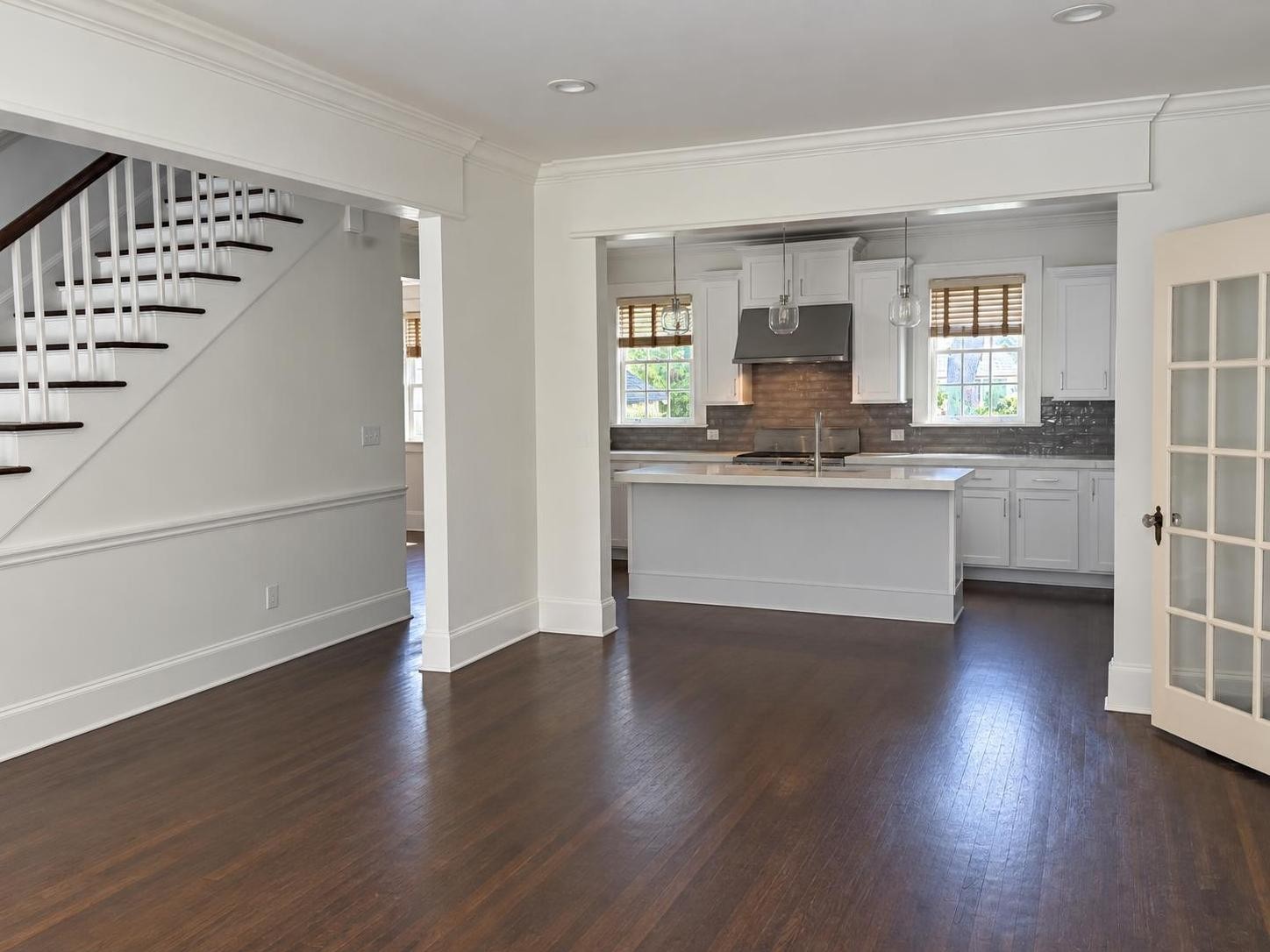
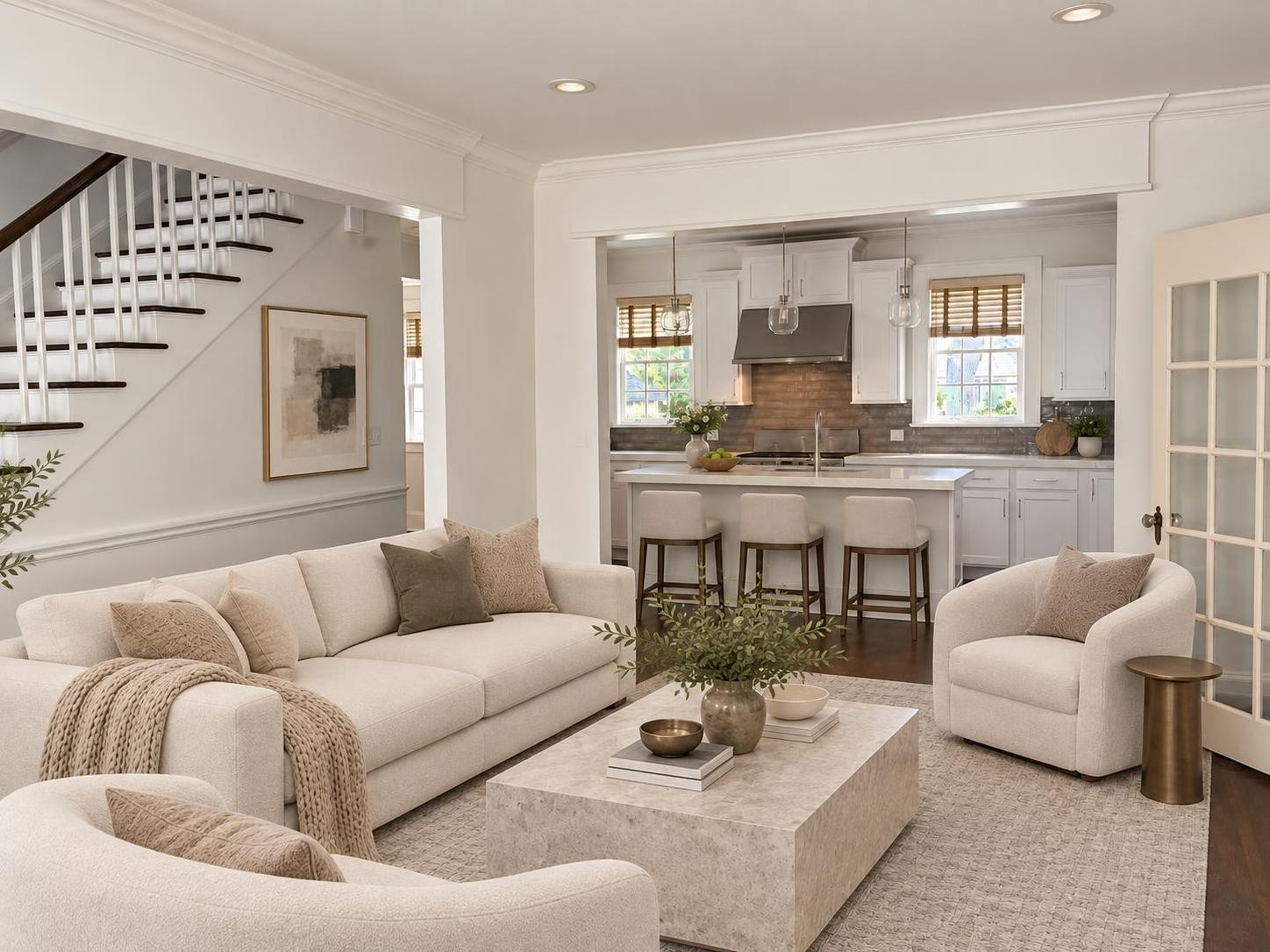
In the “Furnish an empty room” example above, compare the kitchen windows, stair position and glazed door in both views. Furniture is added around these visible features. Its starting image is already digitally emptied; compare every delivered edit with your original and the actual home.
A safeguard, not a guarantee. Editing errors can still occur. Compare every result with the original and actual property before sharing, and disclose virtual edits as required.
Fixer Upper is different: it creates renovation concepts that may change finishes and fixtures. These are ideas for a future home, not its current condition.
Your next project starts here.
Lite: $9.99/month for 30 edits. Producer: $29.99/month for 120 edits.
Originals and recent versions kept. Photo and storage allowances apply.